How to Connect Google Drive
Follow these simple steps to connect Petals of Life to your Google Drive. Your flowers will be stored safely in your own account.
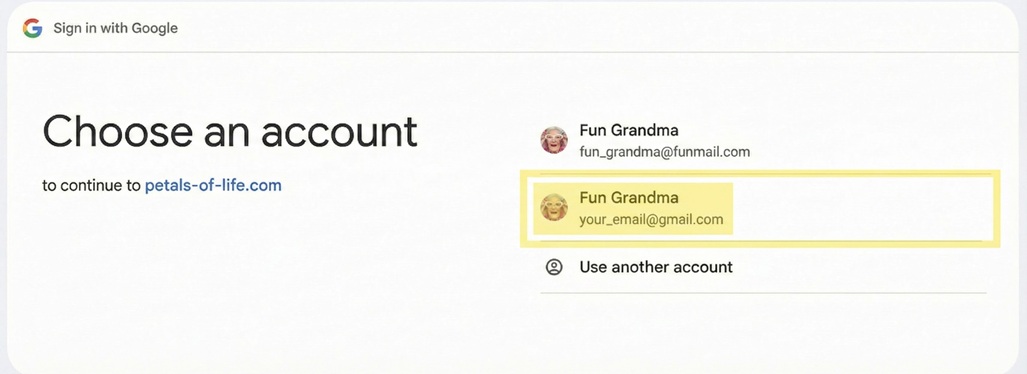
Start Connection NowChoose Your Google Account
Select the Google account where you want to store your flowers. This is where your "Petals of Life" folder will be created.
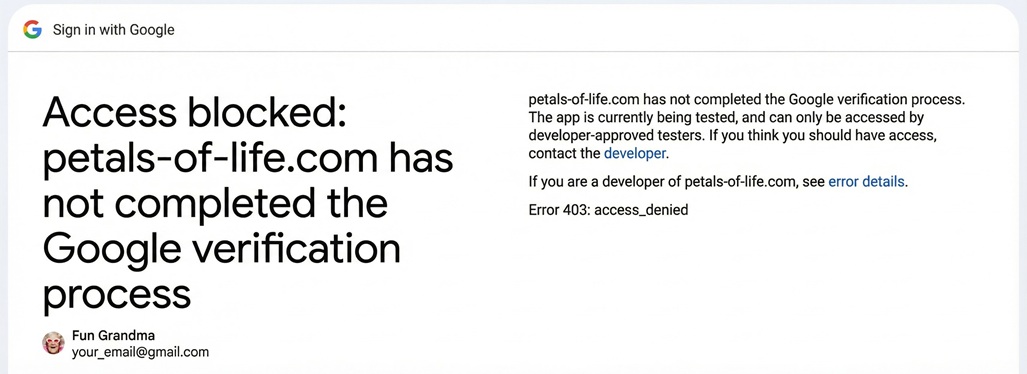
Access Denied Error?
If you see an "Access Denied" or "Access blocked" error after choosing your account, it means you are not on our whitelist of test users.
App Verification Notice
You may see a warning that "Google hasn't verified this app." This is normal for new applications. We're currently in a limited release for whitelisted users only. Click "Advanced" then "Go to petals-of-life.com" to continue.

Confirm Sign In
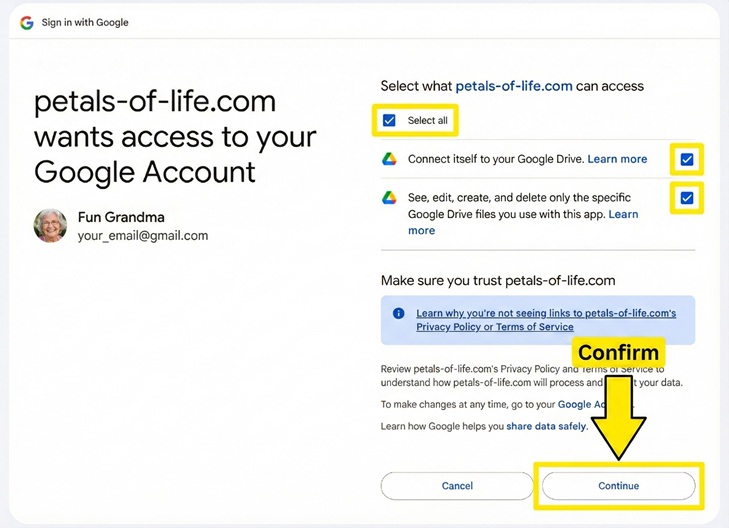
Google will show you what information Petals of Life can access. This includes your basic profile info (name and email) for your account.

Grant Drive Access
Click "Select all" to enable all required permissions. Don't worry - we can only access files created by Petals of Life, not your other documents, photos, or files!
You're All Set!
Once connected, you'll be redirected to your garden where you can create your first flower.
Creating Flowers from Google Drive
After connecting, you can also create new flowers directly from Google Drive!
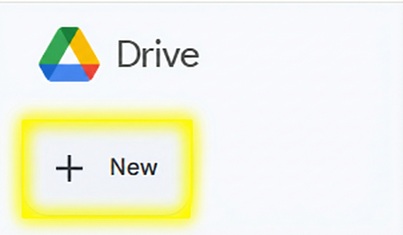
Click the "New" Button
In Google Drive, click the "New" button in the top-left corner.
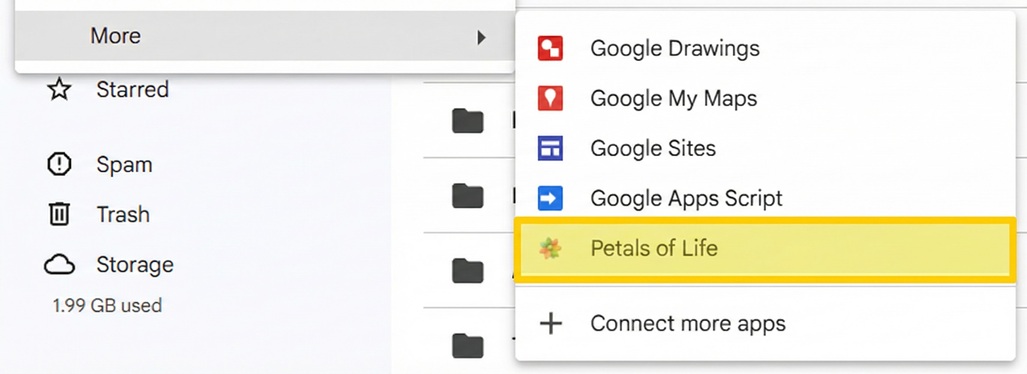
Click "More" to See More Apps
In the dropdown menu, click "More" to see additional connected apps.

Select "Petals of Life"
Click on "Petals of Life" to create a new flower. You'll be taken to the flower editor to design your creation!